Jobs (toolbox icon at the top)
Jobs are the main unit of work in PhotoAudit+. They can be very large and cover a multi-day installation with a large team, or small and simple eg a one-person routine inspection.
Who can view, create or edit a Job?
- All Admins, Project managers, Job Managers and Reviewers can see a Jobs Grid, containing all the Jobs in their Org Units.
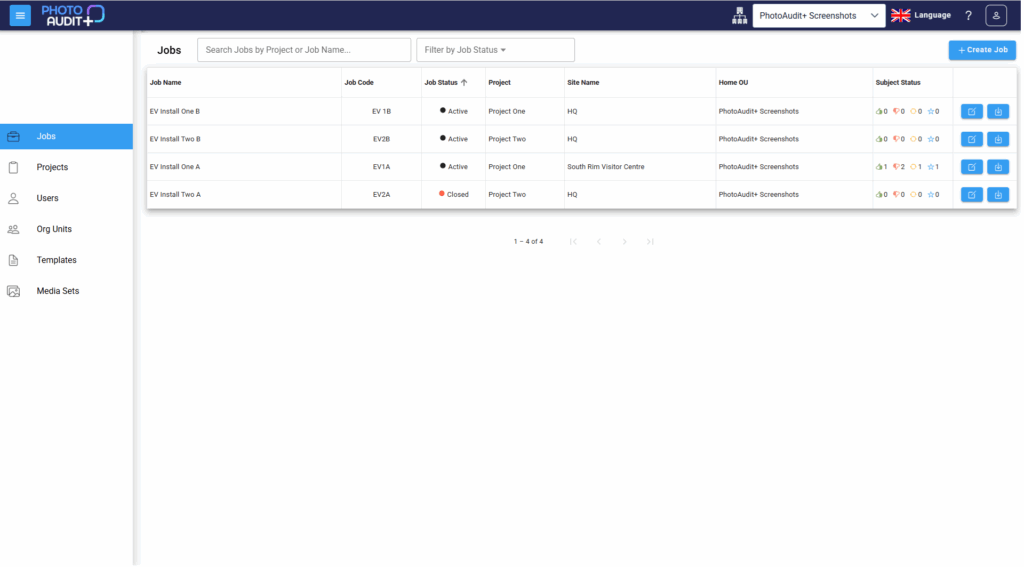
- Reviewers can click on a Job row to review and respond to photos in the Review Portal for that Job. Find out more.
- Admins, Project managers or Job Managers can also click the blue icon on the right of the grid to Manage the Job.
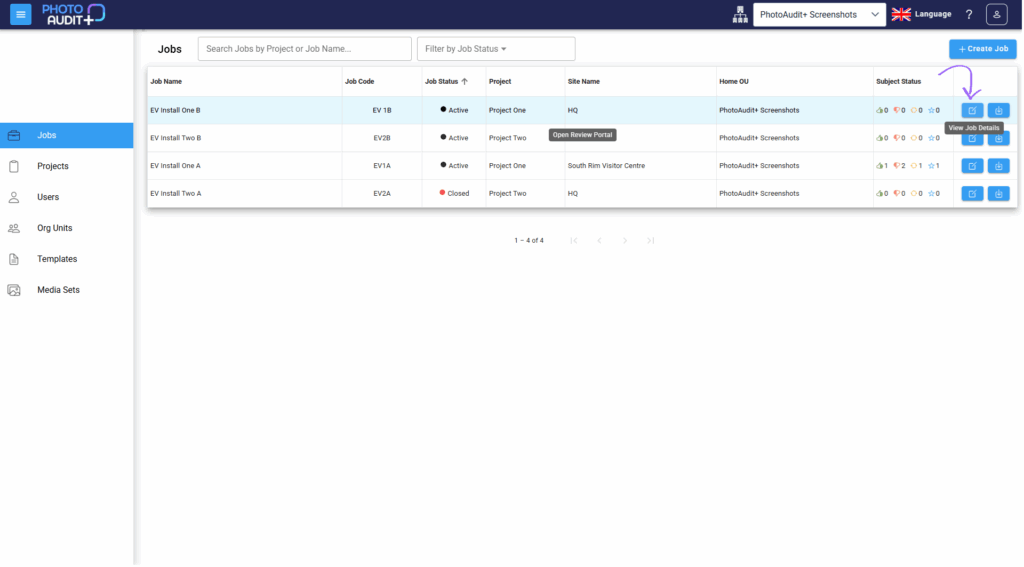
- Only Admins, Project Managers or Job Managers can create or edit a Job.
Create or edit a Job
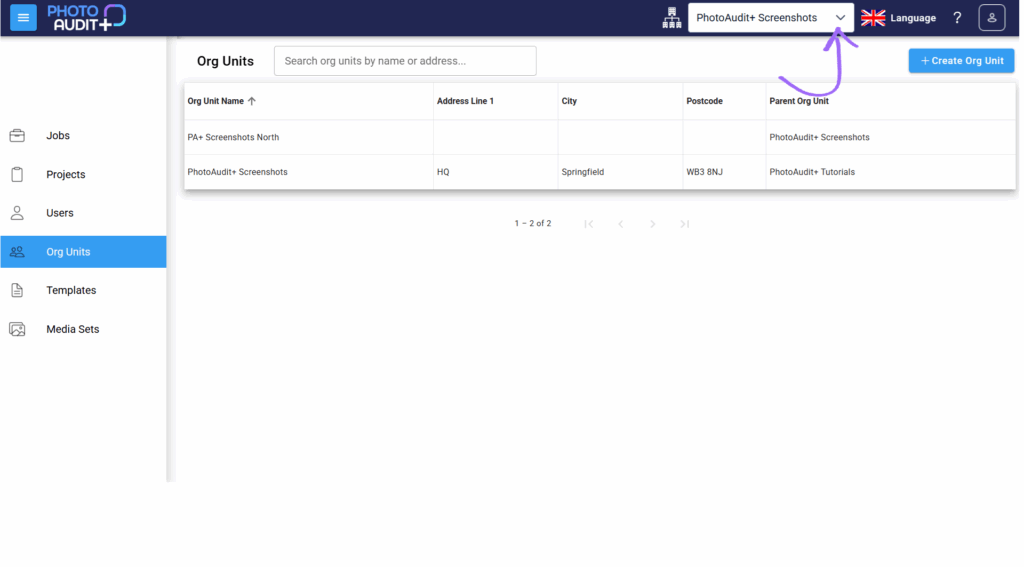
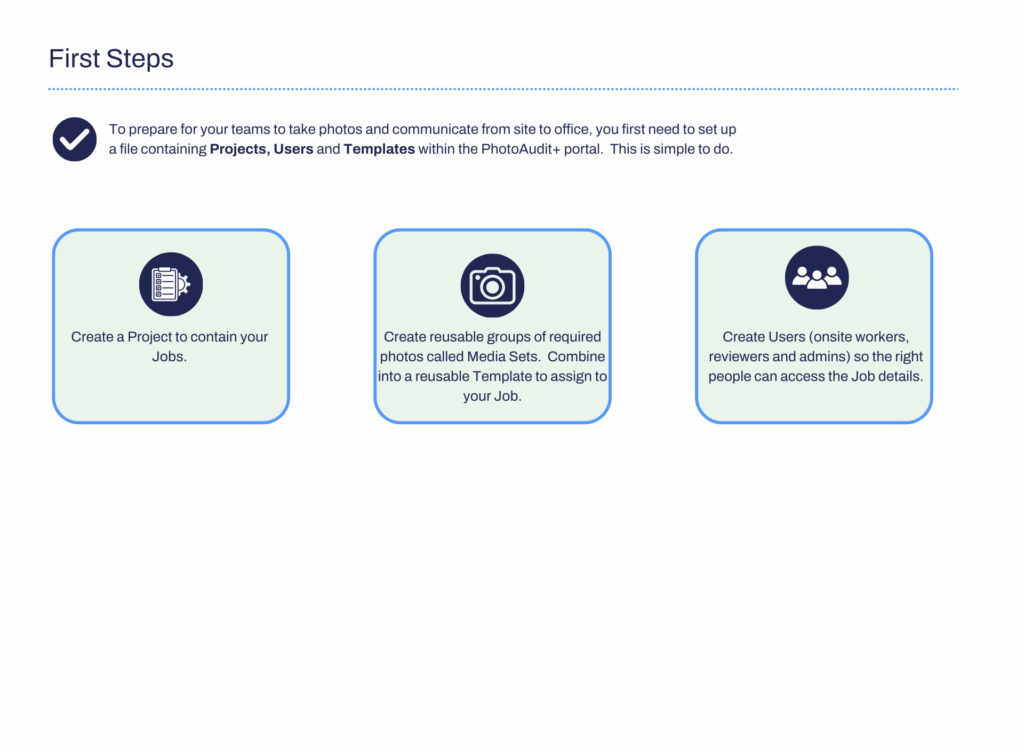
- Check that you already have Project to assign your Job to, before creating your Job. Create the Project first, then create the Jobs that fit within it.
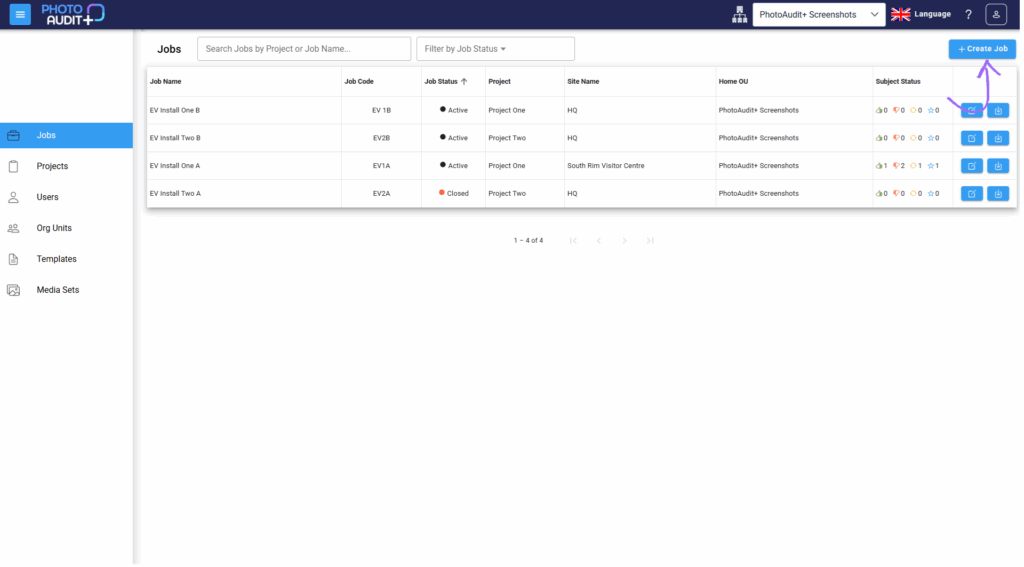
- Click + Create Jobs to create a new Job, or click on the blue Edit button on the right of the row in the Job grid to view or edit the Job Details (only Admins, Project Managers or Job Managers may create or edit Job Details).
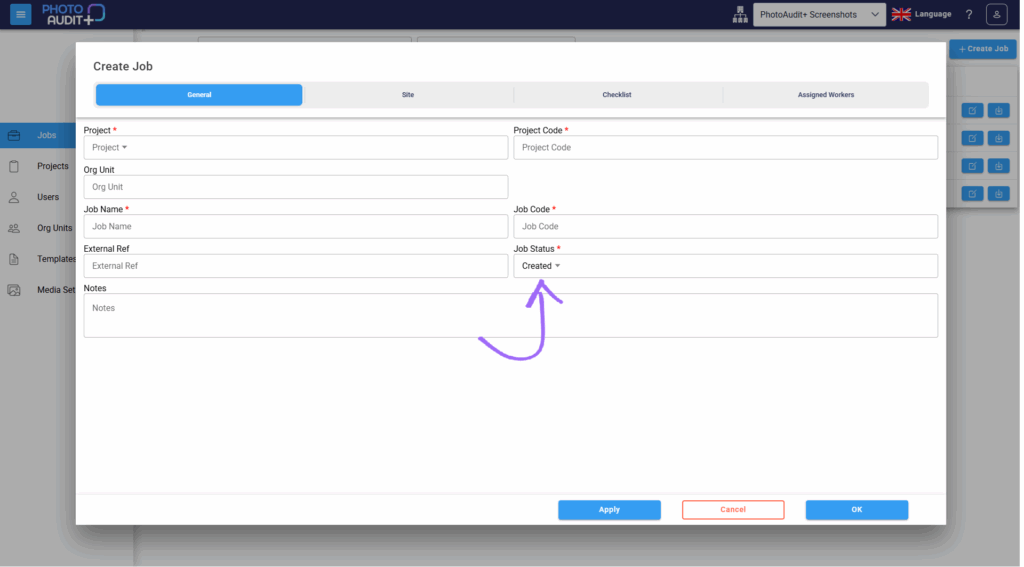
General tab: Name and manage the Job.
- Project – all Jobs are contained within a Project.
- Project Code – automatically filled in when Project selected.
- Job Name – unique within the Org Unit.
- Job Code – unique within the Org Unit.
- External Ref – optional code to tie in with other workflows.
Job Status:
- Created: Once the compulsory fields are verified, the Job is Created. You need to complete: Job name, job code, project and project code, site name and location.
- Active: To make a Job available to users, the Admin/Manager must assign a Job Template and one or more On-site Workers to the Job. Only then can they manually change the status to Active. Active Jobs only will appear on the app for the assigned workers.
- Closed: When the Job no longer needs to appear on the app, the Admin/Manager can change the Job status to Closed. The Job will still appear on the Jobs Grid. Status can be manually changed back to Active.
- Archived: When a Job no longer needs to appear in the Jobs Grid, the Admin/Manager can change the job status to Archived.
Site Tab: Where is the work taking place?
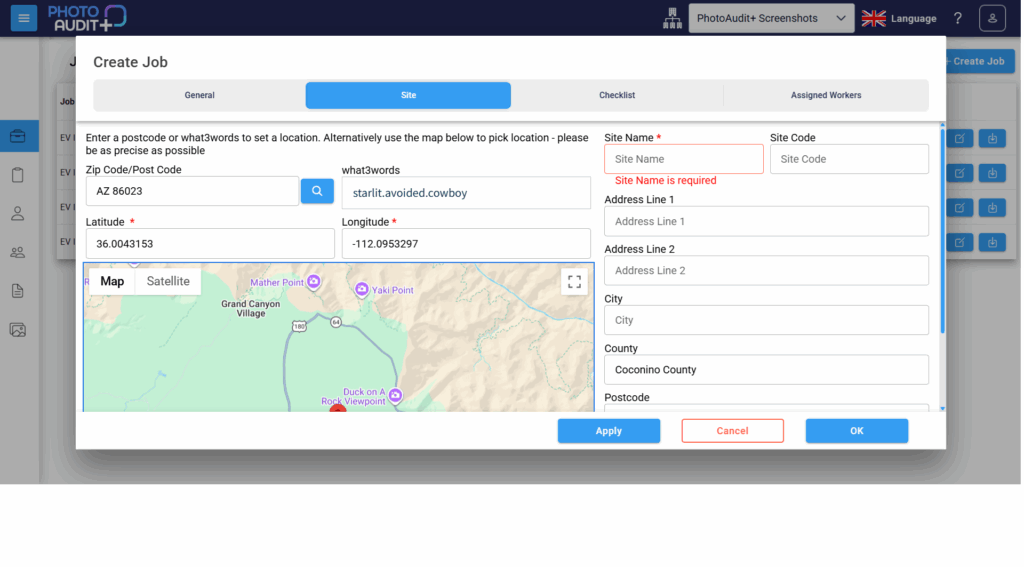
- Site name – a compulsory field to Create a Job.
- Site code – an optional field to identify a Job site.
- The location can be typed in, or generated automatically, using the zip/postal code and ‘search’, What3words or Map placement.
Checklist Tab: What photos are required?
- The checklist for a particular Job is created by assigning a pre-existing Job Template.
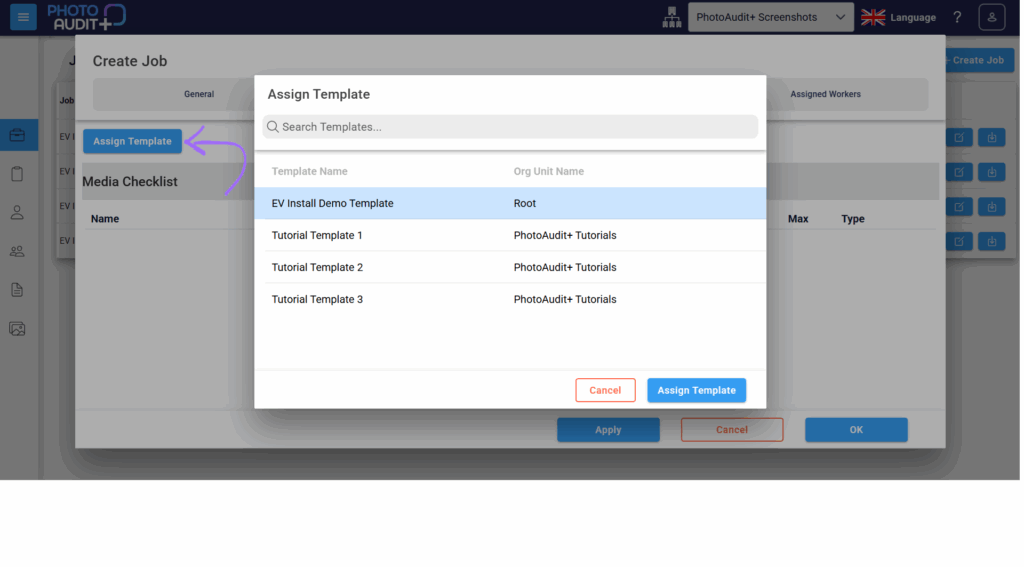
- If the exact collection of photos does not yet exist as a Template, see Templates section to adapt or create your own.
Assigned Workers tab: Who can take photos on this Job?
- Click + Add to assign the Job to particular On-site Worker(s).
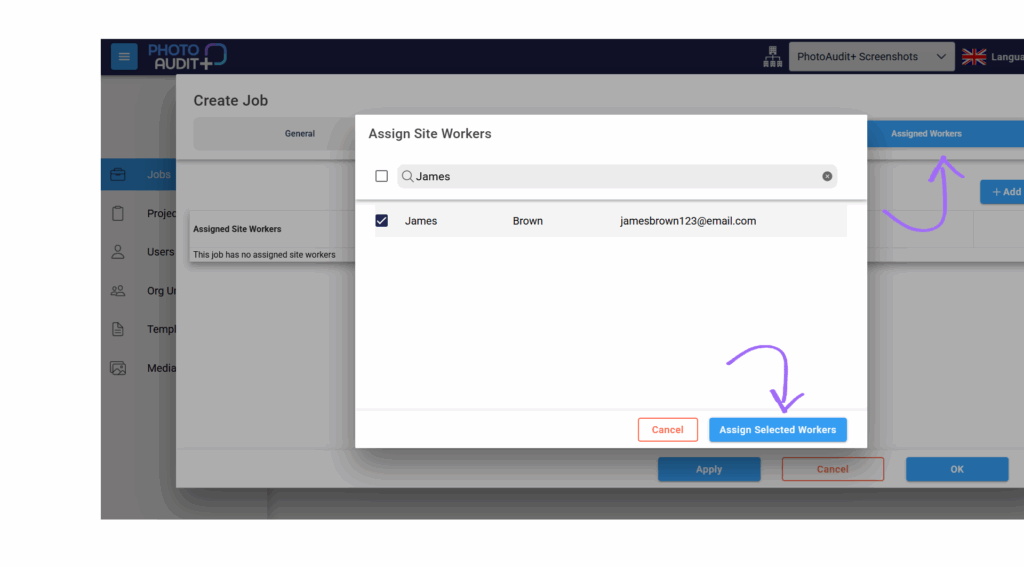
- The Job will then appear on their PhotoAudit+ app.
Need support?
Can't find the answer you're looking for? Don't worry we're here to help!