Templates
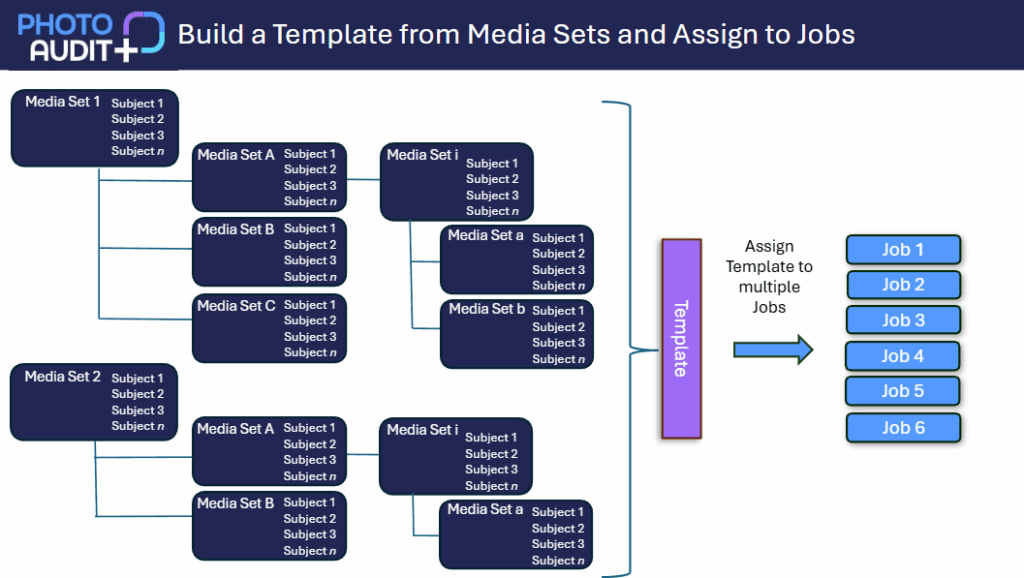
A Template is the whole collection of things that need to be photographed on a Job.It will consist of one or more Media Sets, each of which may contain Child Media Sets and/or individual Subjects. Find out more about Organisational Units.
What can I see in the Templates grid?
The Templates grid shows the list of available templates with their Name, Org Unit and Status.

How to create, view or edit a Template
- Only Admins and Template Managers can create or edit a Template.
- Click the +Create Template button or the name of a Template from the grid to open the Details window – the name of the Template is shown with its Home Org Unit in brackets
Details tab:
- Name: Unique in the Org Unit. This is the name of a full checklist template that can be used and reused, using a different name each time, if required
- Status:When drafting a Template, the default status is Inactive – it appears in the Template grid (so it can be completed and activated in due course) but does not appear on the list of Templates available to assign to a Job.
- When the Template is complete and you are ready to make it available to use, you can change the status to Active.

- When you no longer need to see the Template in the grid you can change the Status to Archived
Media Sets tab
- A Template is made up of one or more Media Sets. An individual Subject may not be added directly to a Template; it must be part of a Media Set.
- The tab shows the Media Sets that have been included within the Template.
- The order of the Media Sets can be adjusted using the = sign to drag and drop.
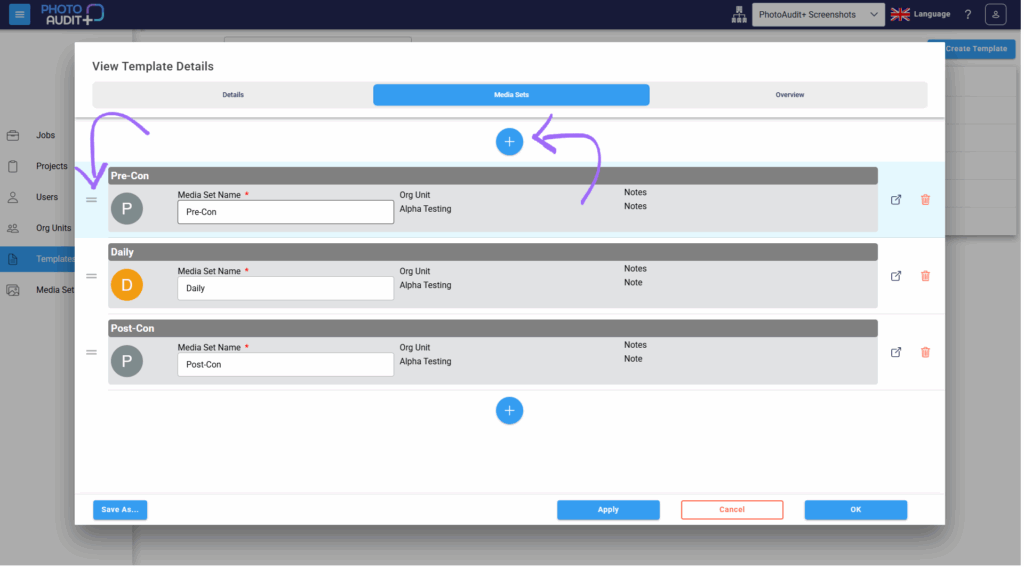
Click + to add a Child Media Set
- You will see the Media Set grid. You can use filters to locate the correct Media Sets.
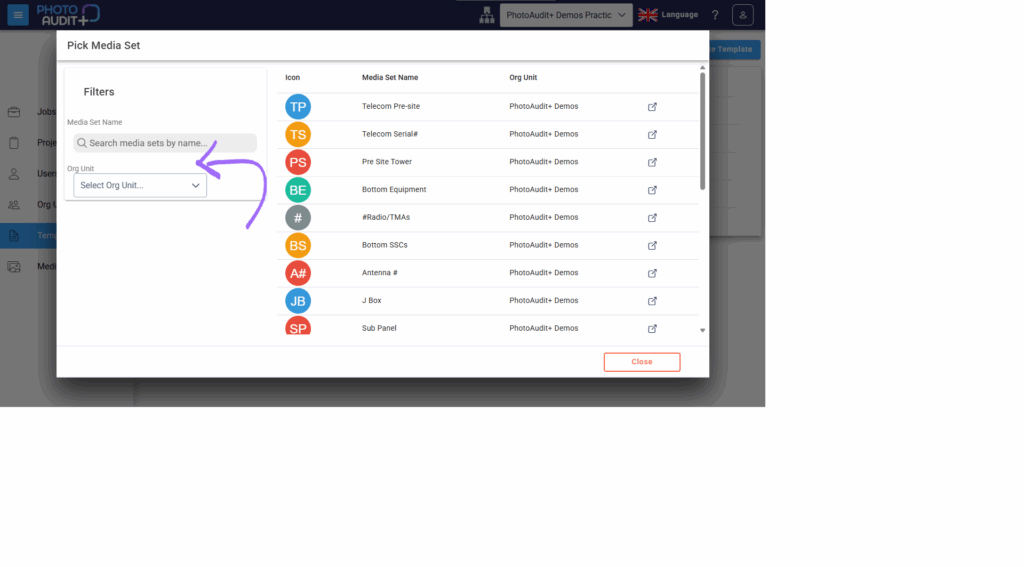
Select a Media Set and it will appear as a Child Media Set
- You can then change the name if required
- You can add multiple copies of the same Child Media Set and give each a unique name eg the same ‘charging bay’ Media Set can be used multiple times and named ‘Charging Bay 1, ‘Charging Bay 2’ etc
- If your Child Media Set does not yet exist, Apply or OK to save your changes, and create the new Media Set as per the instructions. You can then return to your template and add it as a Child.
What if I want a slightly different Template?
- You can make a change to the existing Template and OK.
OR
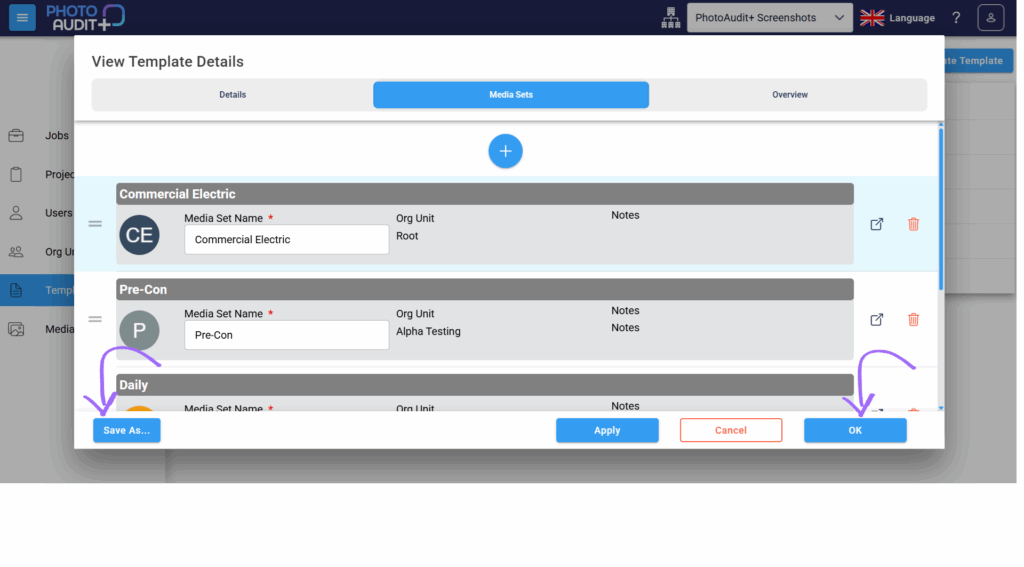
- You can click the Save As button and a new copy of the Template will be created. This can be renamed, and then edited to suit
What happens if I edit a Template?
- When you edit the contents of a Template the earlier version is no longer saved. The new version is available in the Template Library to be assigned to a future Job.
- If a Job Template has already been assigned to a Job, then this has become the Checklist for the Job and will not be affected by changes to the Template.
Need support?
Can't find the answer you're looking for? Don't worry we're here to help!