Organizational Units (2 people icon, 4th down)
PhotoAudit+ allows you to create a hierarchical structure of organizational units, in line with your own business practices to help you manage access to all elements of PhotoAudit+.
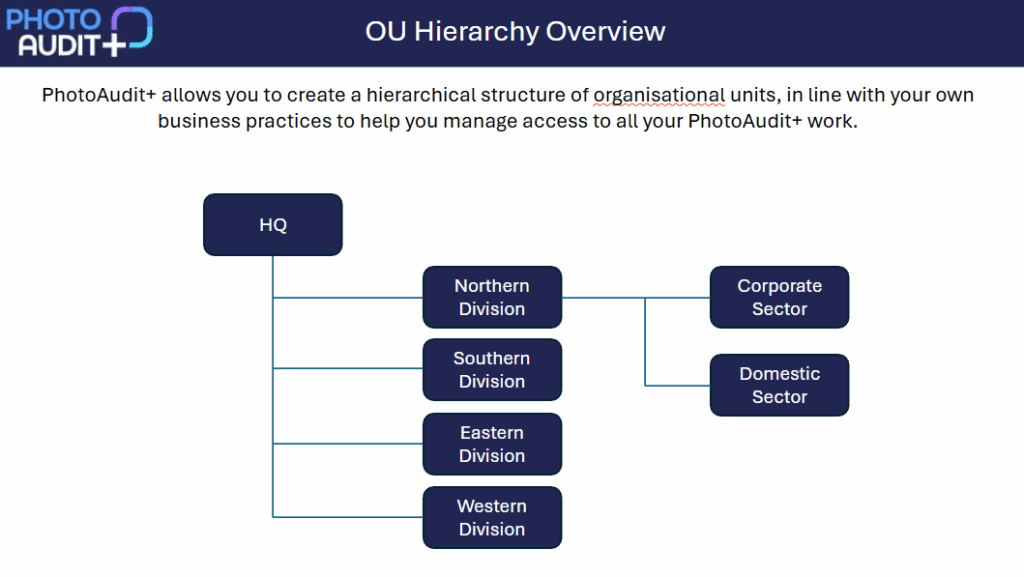
EXAMPLE:
In this example, HQ represents the whole business. It consists of four Divisions, each of which has two sectors.
What is a Home Org Unit?
- You, as a user, have a Home Org Unit. This was set for you by an Admin in your own organization, or someone who is supporting you with PhotoAudit+.
- All elements of PhotoAudit+ have a Home Org Unit: Users, Jobs, Projects, Templates, Media Sets and even Org Units (except for the highest level within your business). HQ in our example.
- Broadly speaking, users can view and manage elements of PhotoAudit+ from their Home Org Unit, or those below.
- Access is managed so that Users can NOT see elements from sibling Org Units or those below the sibling.
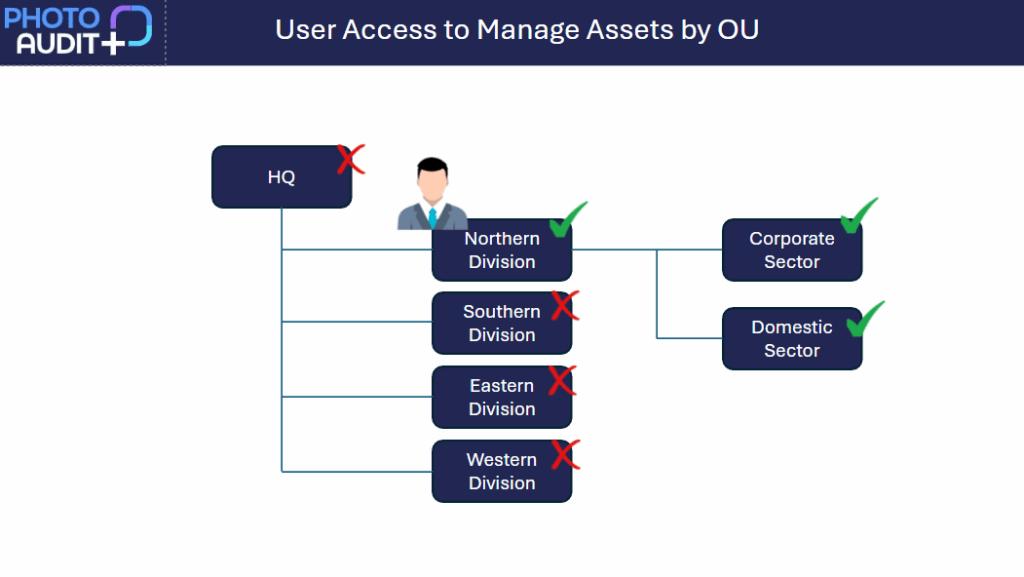
- In our example, Jan is an Admin in the Northern Division. They can manage elements in Northern, and its Corporate and Domestic Sectors. They cannot manage elements in HQ or in Southern, Eastern and Western.
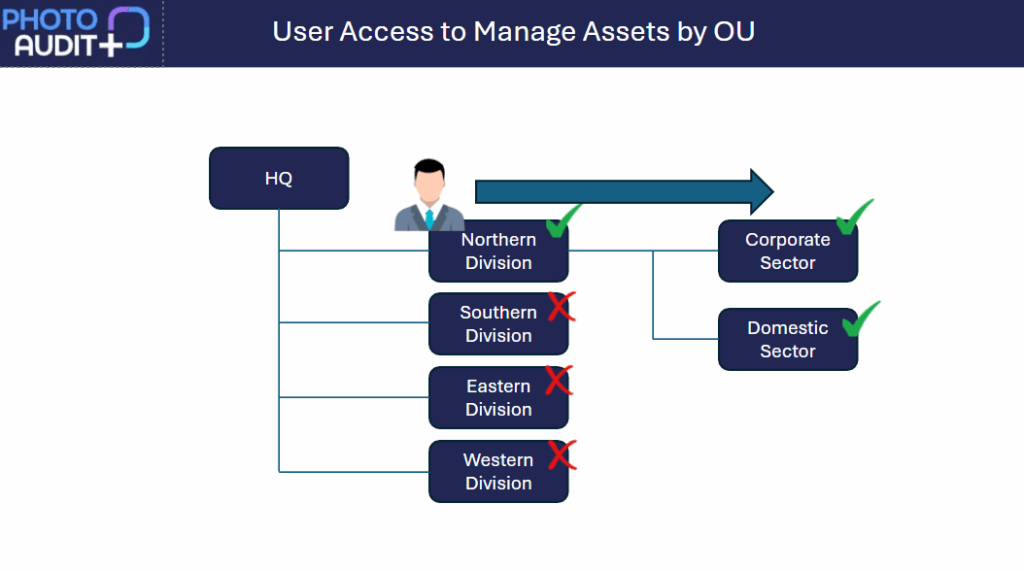
- If you have an Admin or Manager role, you may create, view and manage Projects, Jobs, Media Sets, Templates and/or Users in your Home Org Unit or in child Org Units, below your own.
- In our example, Jan can manage elements in Northern Division or its Sectors.
- If you are an Admin, Project or Job Manager, you may assign to your Jobs, Templates from your Home Org Unit, or Parent Org Unit above your own. These have been provided for you to use.
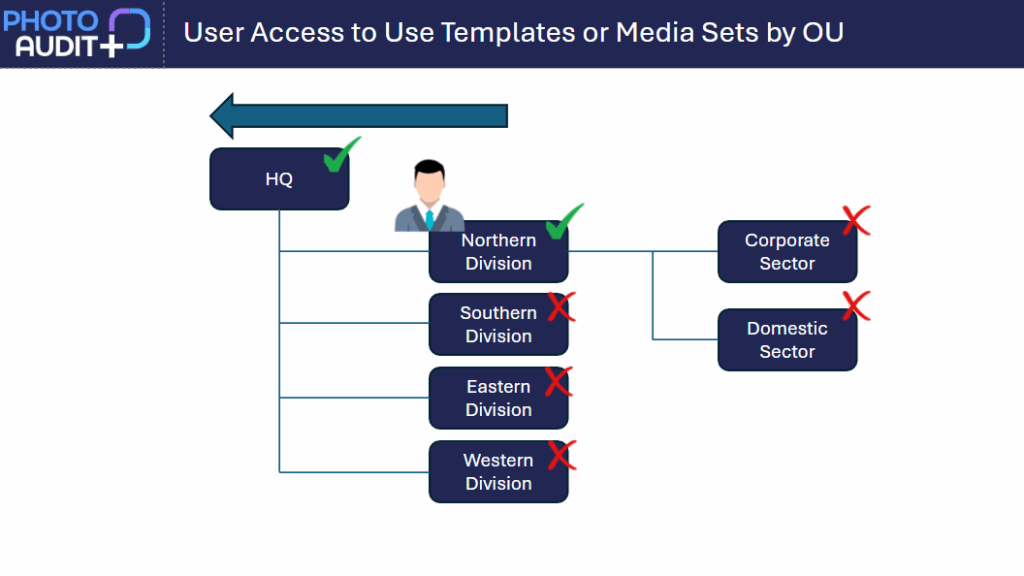
- In our example, Jan can assign Templates from HQ or Northern Division to their Jobs.
Creating and Managing Org Units
- If you are an Admin or Org Unit Manager, you may create an Org Unit that is a descendant of your Home Org Unit.
- The Org Unit grid shows the current Org Unit and any existing descendant Org Units with their location and parent Org Unit.
- In our example, Jan’s Org Unit grid will show Northern, and its Corporate and Domestic Sectors.
- To create a new Org Unit, Click +Create Org Unit.
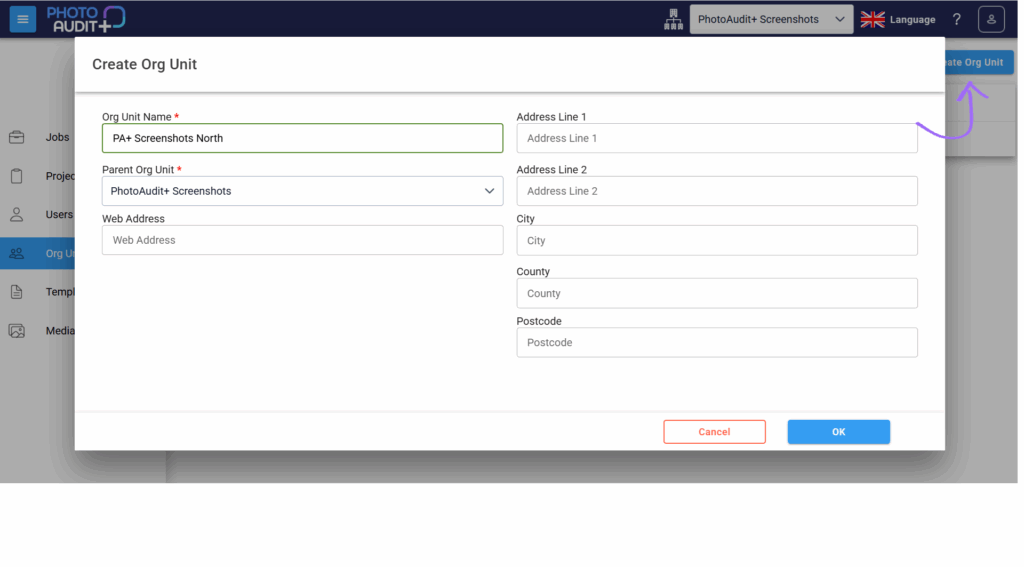
- Complete the information, including the new Org Unit name, the Parent Org Unit (ie the Org Unit that sits directly above the new Org Unit), with an address and website if relevant.
- Your new Org Unit will show on your Org Unit grid.
- To add/edit any information on an Org Unit, select it from the grid, make your change and OK.
- In our example, Jan can create or edit an Org Unit below Northern Division, or below its Corporate or Southern Division.
What is an Active Org Unit?
- By default, your Home Org Unit is shown in a white box at the top right of the portal screen. This is your Active Org Unit.
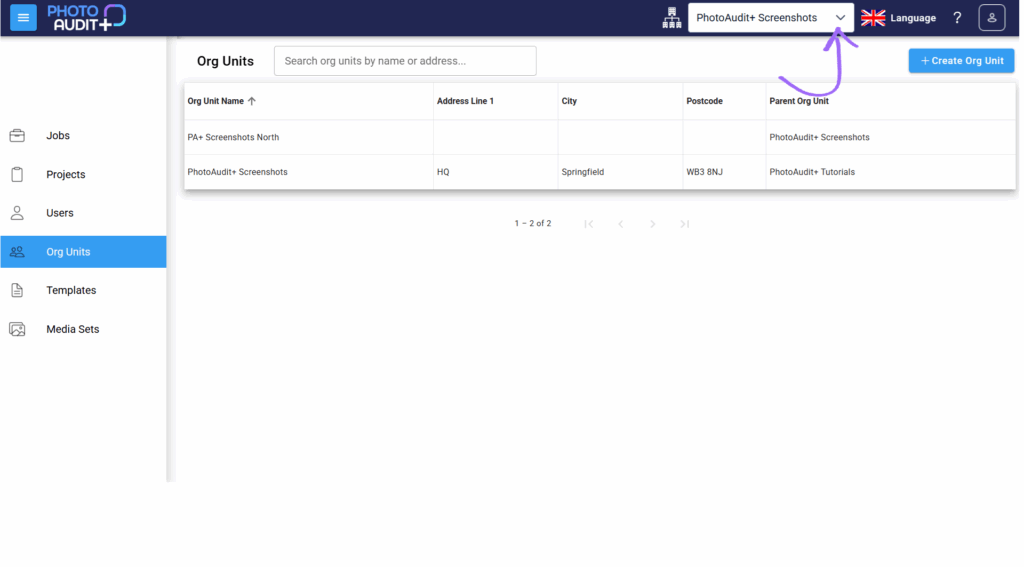
- To focus on just part of your area of responsibility you can select a different Org Unit as your Active Org Unit.
- If your Home Org Unit has descendants, you may choose one of these as your Active Org Unit, using the drop-down arrow in the white box at the top right of your screen.
- In our example, Jan may select Northern Division, Corporate Sector or Domestic Sector as their Active Org Unit.
- You may not switch Active Org Unit whilst you have a job open in Review view. Please return to Jobs Grid, then choose a new Active Org Unit.
How does my Active Org Unit affect what I can do?
- Your Active Org Unit affects what you can see in PhotoAudit+, what elements you can use and what you can create or edit.
Projects:
- You can filter your Projects grid by selecting a lower Org Unit as your Active Org Unit
- You may only view or manage Projects in your Active Org Unit or lower.
- In our example, if Jan has selected Corporate Sector as their Active Org Unit, they only view or manage Projects in Corporate and not in Northern.
Jobs
- You can filter your Jobs grid by selecting a lower Org Unit as your Active Org Unit.
- You may only create, view or manage Jobs in your Active Org Unit or lower.
- In our example, Jan has selected Corporate Sector as their Active Org Unit, they can only create, view or manage Jobs in Corporate and not in Northern.
Media Sets:
- You can filter your Media Set grid to view only Media Sets in your Active Org Unit, or in Org Units higher or lower than the Active Org Unit.
- In our example, Jan can view Media Sets in HQ, Northern, Corporate or Domestic but not in Southern, Eastern or Western.
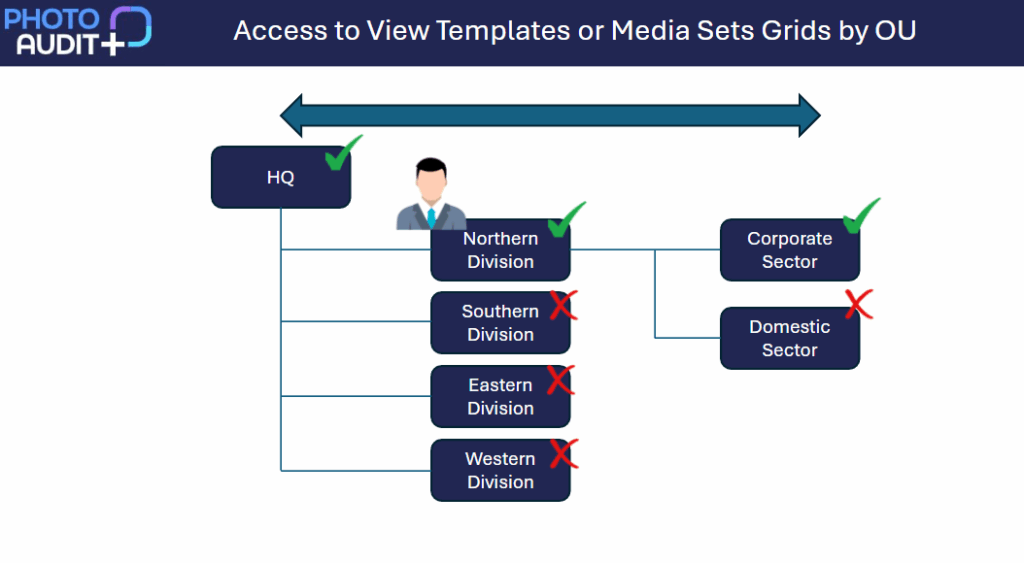
- You can manage Media Sets in your Active Org Unit, or those lower.
- In our example, Jan can manage Media Sets in Northern, Corporate or Domestic only.
Templates
- When creating a Job, you may assign Templates from your Active Org Units or higher Org Units.
- Someone in a parent Org Unit may have made these available for you to use.
- Jan may assign Templates from HQ and from Northern to their jobs. If they have selected Corporate as their Active Org Unit, they may also assign Templates from Corporate.
- When creating a Template, you may add Media Sets from your Active Org Unit, or those above only.
- Jan may add Media Sets from HQ or Northern to Media Sets in Northern, Corporate or Domestic.
Need support?
Can't find the answer you're looking for? Don't worry we're here to help!