
Once your photo is submitted, a reviewer can respond to each image or the Subject as a whole.
- Where more than one image has been taken for a Subject, they appear in the carousel at the bottom of the screen when you tap a Subject thumbnail.
- The status of each image appears in the carousel, whilst the Subject as a whole has a status shown next to its name.
- Provided a Subject has a status of Accepted, it is not necessary for every image to have its own status. This leaves the default egg-timer for ‘awaiting review’.
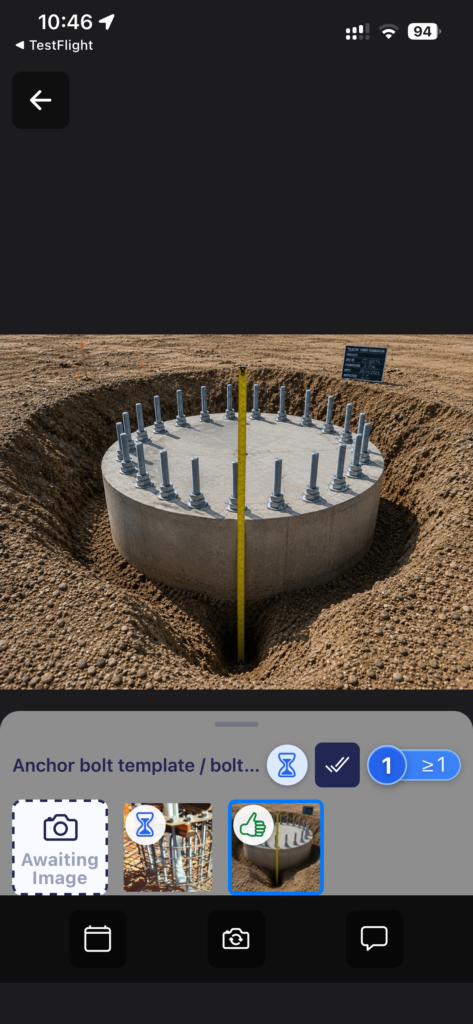
The responses are:
- Accept the photo (thumbs up icon). If the image in question is part of a series, you may need to continue taking photos,
- OR Accept the whole Series (the Subject status will show a green thumbs up). No more photos are needed, even if the min number of photos has not been reached.
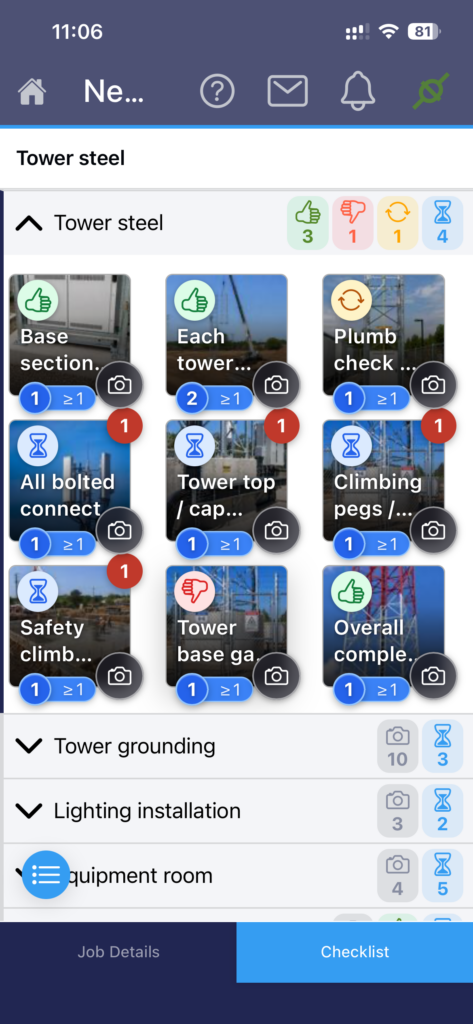
- Reject Work (thumbs down icon). There is something wrong in the work itself, or a problem is revealed by the photo. The Reviewer can provide a comment. Remedial action is required before a replacement photo is taken
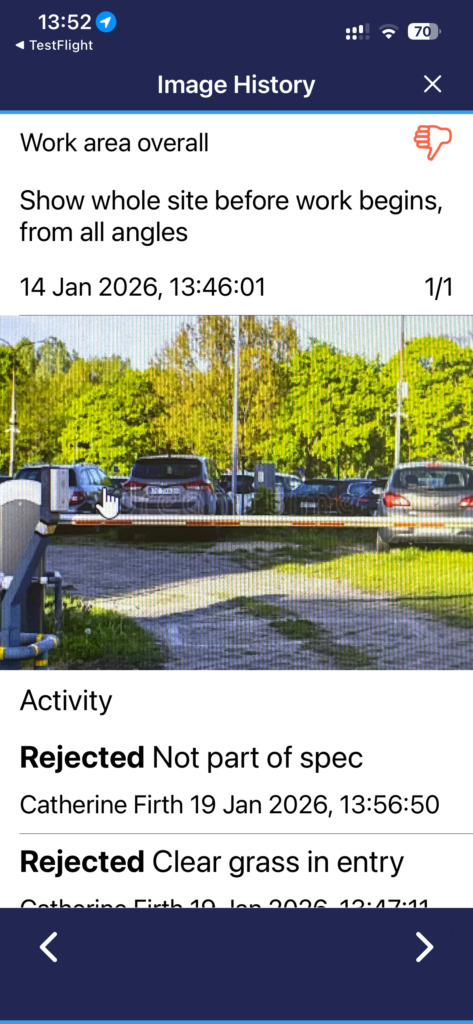
- Retake Image (round arrows) due to the content or quality of the photo. When selecting Retake Image, the reviewer is not able to accept or reject the work. The reviewer can add a comment, which can be read and responded to in the App.
- A replacement photo is required.
- To retake a photo, that has Reject or Retake status, go to carrousel of images for the Subject, find the photo that needs replacing and tap the retake button (camera with round arrows).
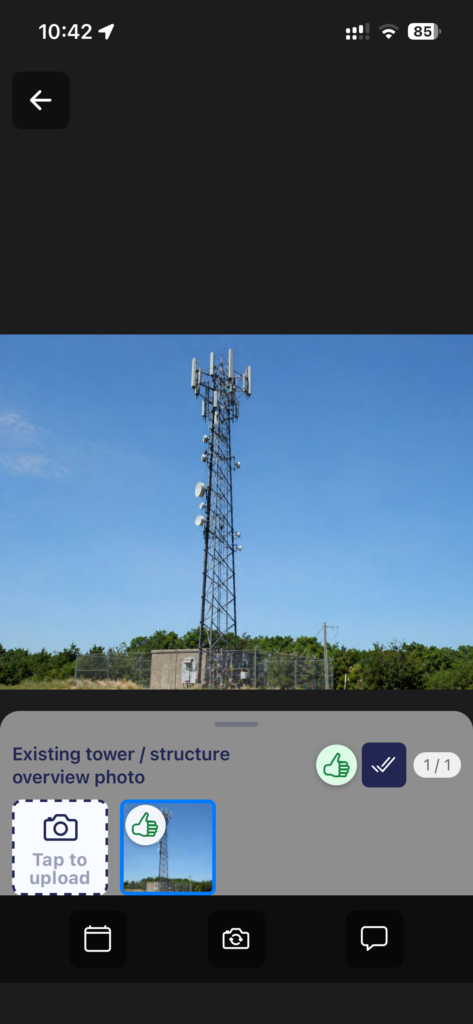
- Make a comment if you need to respond to the reviewer, you can add a comment by tapping the speech bubble below the photo.
- Tap on a photo so it is visible on screen and, in the Comments section (speech bubble, you can explore Activity. This includes reviewer responses and any Comments added by the On-site worker or Reviewer.
- Awaiting review (hour glass) means an image or Subject has new images that require the Reviewer’s attention.
- Awaiting media (camera icon) means a Subject is awaiting images to reach the maximum number of images required – and has yet to be Accepted.