
- A Series is a collection of images that fulfils the requirements of a Subject.
- A Subject has a pre-defined min and max number of photos required.
- Each image in a series can be reviewed individually, and each can be viewed in the app in Image Preview. Each image in the series has its own status icon.
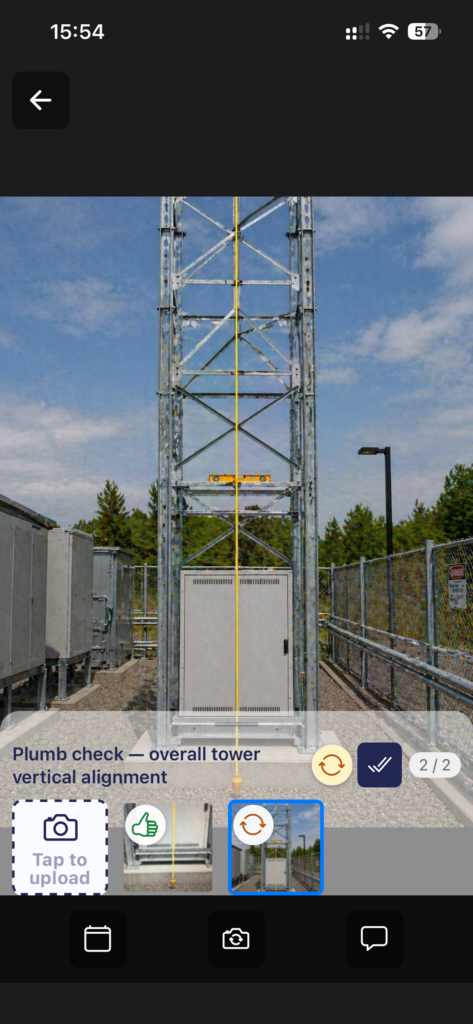
- Open a Subject and swipe left and right in the carrousel to select the image in the Series that needs replacing, and click Retake (camera with round arrows).
- A History is the collection of original and replacement photos for an individual member of a Series.
- The History contains all versions of a photo, including the original and all Retakes.
- Especially helpful if the Reviewer has made rejections, retakes or annotations.
- In the App, tap the thumbnail, then the desired image in the carousel, to open it in Image Preview. Then tap the History (calendar icon at the bottom) swipe left and right to view each member of the history – the number of a photo in the history is shown top right.