
- The app opens on the ‘My Jobs’ screen, which shows all the jobs assigned to you.
- Only Jobs with ‘Active’ status show on the app. Your Jobs manager activates a ‘Created’ Job when the work is due to start.
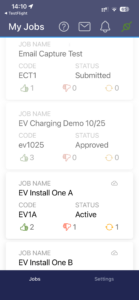
- Tap on a Job to open its Checklist.
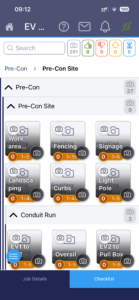
- When you open a Job, there are 3 main sections:
- Job Details: contains reference information for the whole Job, including Site location, Job Notes, the Project that this Job is part of, Project Notes
- Checklist: contains the detailed structured list of all the photographic evidence required to complete the Job.
- The Checklist is made up of Media Sets, which may be expanded or collapsed as you explore the Checklist
- Media Sets are made up of Subjects
- Each of these may have Notes to guide you on what is required
- Camera: here you can take photos for a Subject, review Subject Notes, add a Comment, or review Comments from the reviewer.
- You access Camera by tapping on a Subject, or on the Retake button.
- Swipe left or right between these sections, or tap the arrows at the top of the screen to navigate, take photos or review details.
- The home button takes you back to the ‘My Jobs’ list.
- The first time you open a Job, you will first see the Job Details area.
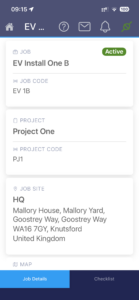
- You can swipe left to view the Checklist.
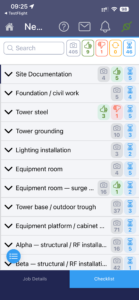
- Next time you open a Job, you will go directly to the Checklist, with the first (or latest used) Media Set expanded, ready to choose a Subject and get started.