
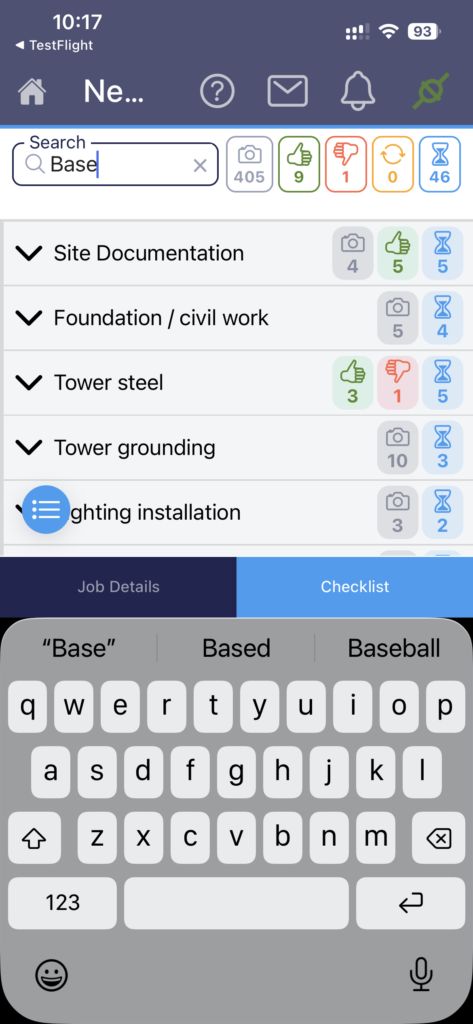
- From the Checklist, tap on a Subject to open the Camera
- You can use the search bar to locate the correct Subject by name, or navigate the Media Sets.
- Tap the white button to take a photo
- You have a short time to hit ‘Retake’ if the photo is not how you want it, and the image will not be stored in PhotoAudit+.
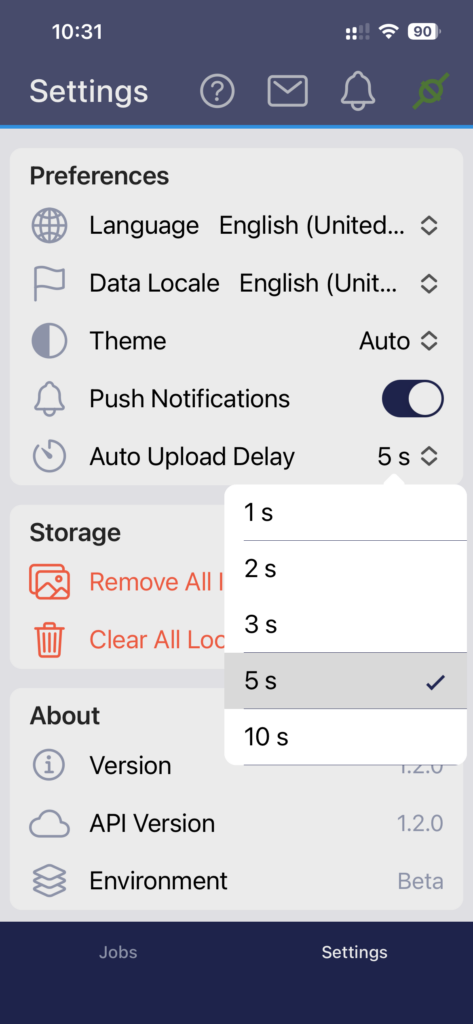
- In the App Settings tab (visible at the bottom when you view your Jobs list) you can tailor the length of time you have to Retake your image by adjusting the Auto Upload Delay.
- You have a short time to hit ‘Retake’ if the photo is not how you want it, and the image will not be stored in PhotoAudit+.
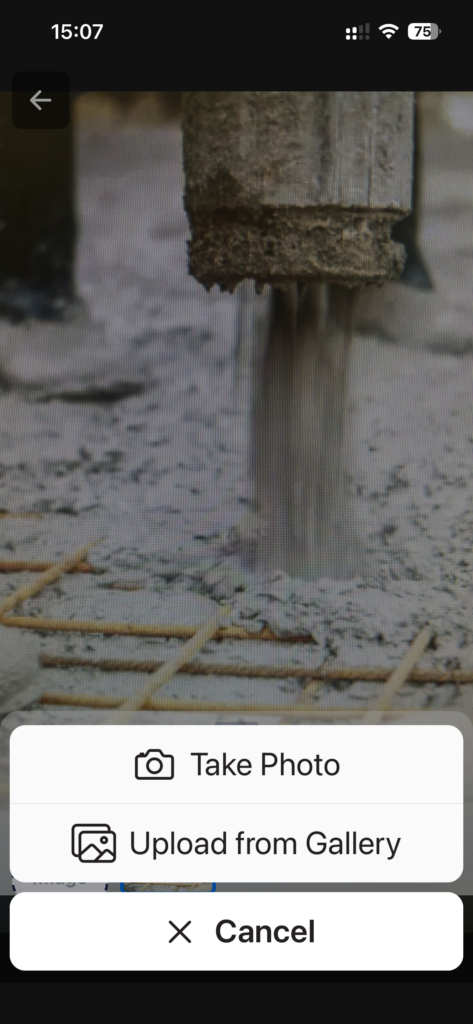
- Alongside the camera button are icons to flip and use the rear camera (for a selfie) or select an image from your photo gallery. Gallery is only available if you have given permission for PA+ to access your photo gallery, and if a location is not essential for this Subject
- Your image will appear in the carousel at the bottom of the screen, whilst the Camera preview still shows on screen.
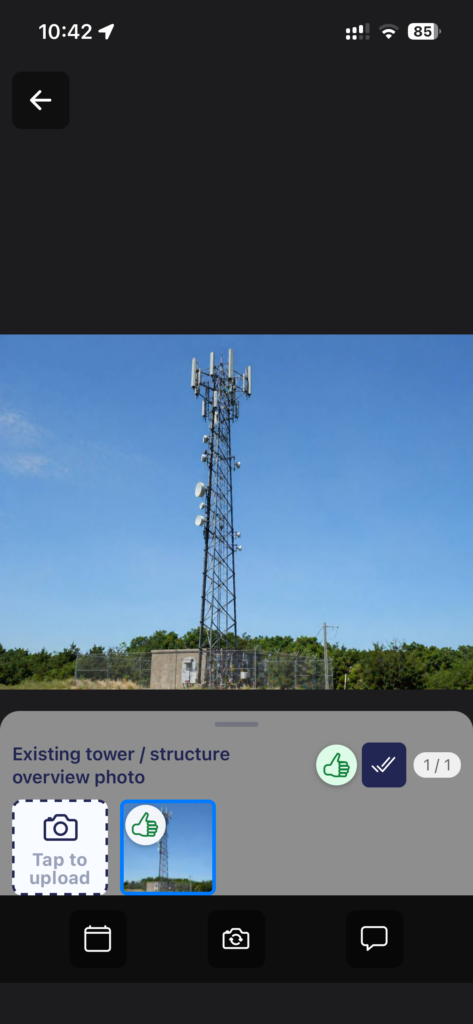
- Tap the white button again to take more photos in the same Subject – these will be added to the carousel until the max number of images for that Subject is reached.
- If you don’t need to take any more photos for this Subject, but have not reached the Max number of images, click the Series Complete double tick button.
- After you take the final image required to reach the Max number of images for a Subject, you will automatically see the next incomplete Subject in the Checklist, with the Camera preview, ready to take a photo.
- If you want to access a different Subject, swipe right to access the Checklist and navigate to your chosen Subject.