
Projects (clipboard icon, second down)
Create and manage Projects to contain your Jobs.
- Manage your work by creating Projects and adding Jobs to them.
- The Project grid shows all Projects in your Org Units.
- Reviewers can view Projects in their Org Units.
- If you are a Project Manager or Admin, you may create Projects and add Jobs to them
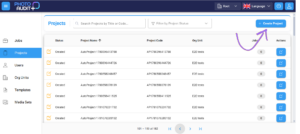
To create or edit a Project:
- Click +Create Project to create a new Project OR click on the name of a Project in the grid to view or edit the Project Details window.
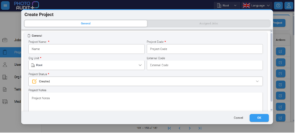
- Project name – unique in its Home Org Unit.
- Project Code – unique in its Home Org Unit.
- Org Unit – the Home Org Unit of this Project and all the Jobs it contains – from the dropdown list
- External code – optional field to tie in with other workflows
Project Status
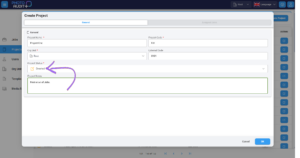
- Created: Once the details are complete and verified, the Project Status is Created – this is an automatic status.
- Active: When a Job within the Project is Active, the Project is automatically Active. It remains Active even when there is no longer a currently Active Job within the Project.
- Closed: When a Project is finished, the Admin may manually change the status of the Project to Closed – no more jobs can be added to it.
- Archived: When the Project no longer needs to instantly be available, the Admin can manually change the status to Archive.
- All Jobs within the Project are also Archived.
Project Notes
- Optional additional information.
Assigned Jobs
- The Assigned Jobs tab shows the Jobs within the Project
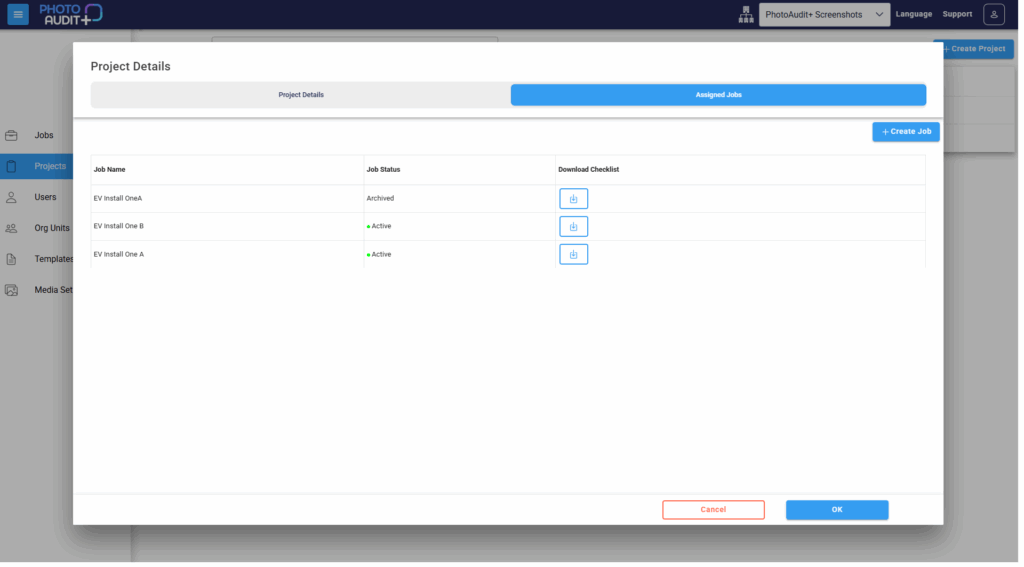
- Click + Create Job to create a new job within the Project.
1