
Users & Roles (person icon, 3rd down)
Manage your people by creating users and managing their permissions.
- The User grid shows all users in your Org Units.
- If you are a User Manager or Admin, you may create Users and assign roles to them.
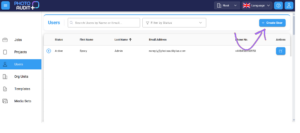
To create a new User:
- Click the +Create User button and complete the email address, first and last name and phone number, if available.
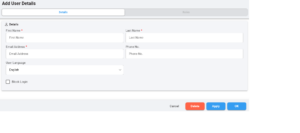
- Apply/OK to save this information whilst you complete the Roles page.
- When you create a User, they will receive an email from PhotoAudit+ inviting them to set a password and login.
To Temporarily Block a User
- Select a User from the User grid.
- Check the Block Login box.
- The user will not be able to login to PhotoAudit+. You will not be charged for any full month during which a user is Blocked.
- This action can be undone in future, by unchecking the box, and the user will resume their roles and Org Units.
To Permanently Delete a User
- Select a User from the User grid.
- Open User Details and click the Delete button.
- Deleting a User means they will no longer be able to login to the Portal or App.
- You will not be charged for any full month after a user is Deleted.
- If they rejoin PhotoAudit+ in the future, they will not automatically be able to access their work from their previous membership period.
- Their new Roles and Org Units will be defined by the Admin/User Manager.
Assign one or more roles to the user
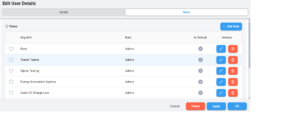
As a User manager or Admin, you may assign one or more roles to a user, depending on your own role.
- Click + Add Role
- Select the Org Unit which is the highest level the User will work in, and select a Role. You may create users with any role below your own OU, or in equivalent or more junior roles within your own OU.
- A User may use the permissions from their Role in their home OU and in all Child OU’s. They may also be assigned higher roles at lower OU’s.
- If a User has more than one role, select One has their Default Role.
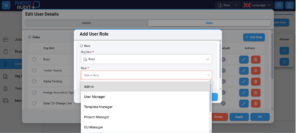
Admin
- Admins are able to review images using the Review Portal.
- Admins may create and manage Users, Projects, Jobs, Media Sets, Templates and Org Units.
Manager
- Managers are able to review images using the Review Portal
- Managers may create and manage Users, Projects, Jobs, Media Sets, Templates and/or Org Units, depending on their Manager role.
- Users may hold one or more Manager Roles alongside each other. An Admin has the permissions for all Manager Roles.
User Manager
- A User Manager can create and manage Users in their Org Units.
- A User Manager can assign and manage roles to a User.
Project Manager
- A Project Manager can create and manage Projects and Jobs. PhotoAudit+ Jobs relate to capturing photos of a piece of practice work on-site. Projects are made up of related Jobs.
Job Manager
- PhotoAudit+ Jobs relate to capturing photos of a piece of practical work on-site.
- Jobs Managers add a Job to a Project and assign a Template and On-site workers to the Job.
Template Manager
- A Template Manager may create Templates from existing Media Sets or create Media Sets and build them into a Template.
- They can create these ‘from scratch’ or make a copy to edit. See more.
Org Unit Manager
- An Organisational Unit (Org Unit for short) is the whole or a sub-unit of your organization. These form a hierarchical structure. All elements of PhotoAudit+ have a ‘home Org Unit’. An Org Unit Manager may create and edit Org Units below their own. See more.
Reviewer
- Reviewers may review images and respond via the Review Portal to any Job listed in their jobs grid.
On-site Worker
- On-site workers can open a Job to which they are assigned in the PhotoAudit+ app and take photos to complete the checklist.
- Only Active Jobs appear in the Jobs list on the app.
1